Scan Shot: PDF & Photo Scanner
KAERMORHEN, S.LProductivity
4.4913.00 Reviews
- Version
- 2.10.0.10221
- Installs
- 1.00M
- Age Rating
- Everyone
Screenshots
Our Review of Scan Shot: PDF & Photo Scanner
 Analysis by Appyee
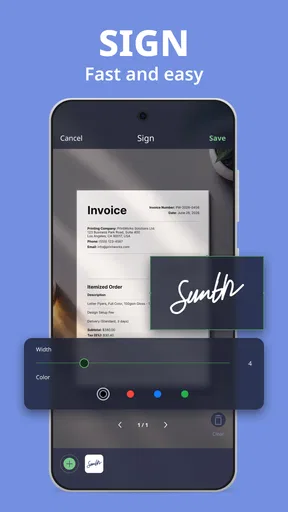
I find a phone scanner most useful when it removes a small but persistent chore: getting a paper document into a form I can keep, send, or work with later. Scan Shot - PDF Scanner App is built for that everyday job, with scanning and signing at its center. It is a productivity app from KAERMORHEN, S.L, and it is free to install, though in-app purchases are offered. I’d consider it when I need a quick digital copy without finding a printer or a dedicated scanner.
When a scan depends on a connection
Scanning starts with the phone camera, but the rest of the workflow can involve network access. That matters most when you want to move a finished file to cloud storage or send it on right away. I’d treat the scan itself and its eventual destination as separate steps: capture and check the document first, then upload or share it when the connection is suitable. That simple habit helps avoid discovering a weak signal only after you have rushed through the whole task.
Cloud services are useful when a document needs to be available on another device, but they also add a dependency that a paper folder or a file kept on one phone does not have. If I were scanning something just before a meeting, I’d open the completed file and make sure it is readable before relying on a cloud copy. For a document that must be sent immediately, I’d also keep the recipient and destination ready, rather than assuming the connection will cooperate at the last moment.
Useful in the places paperwork appears
The phone-scanner format makes sense in places where carrying a flatbed scanner would be absurd: at a desk with a signed form, in a classroom with notes on a board, or while sorting receipts after an errand. I like that these are different kinds of paper problems. A receipt is worth saving for later reference; a form may need a signature and a clean PDF; a board note may be easiest to capture before everyone leaves the room.
For a realistic example, imagine I am handed a permission form while away from home. I can capture it, inspect the crop, and prepare a digital copy instead of hoping I remember to scan it later. If I need to share it, network access becomes part of the final handoff, not a reason to skip checking the image. I would still keep the original when it matters, since a phone scan is a convenient copy rather than a guarantee that every institution will accept a digital version.
Recovery is part of a good scanning routine
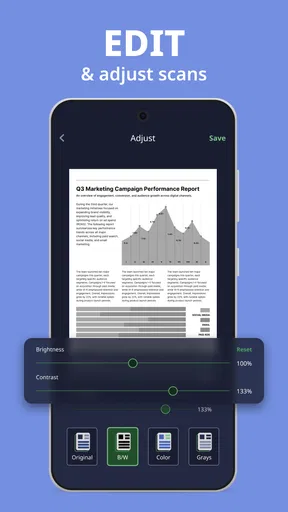
Automatic edge detection and enhancement can save time, but I would not accept the first result without looking at it. A dark table, a curled corner, or a shadow can make a page look less clear than it seemed in the camera preview. My practical rule is to check all four edges and any small print before moving on. If a page looks skewed or clipped, retaking it while the paper is still in front of me is easier than discovering the problem when I need the document.
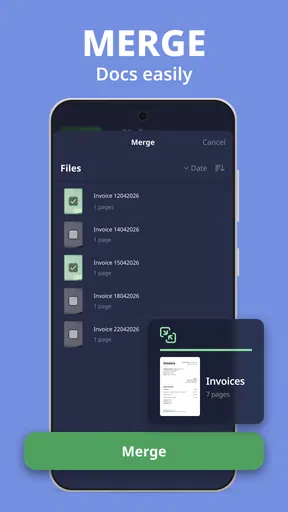
For multi-page paperwork, I’d also pause to confirm the pages are in the intended order and that no page has been missed. A scan can look convincing as a thumbnail while hiding a faint line or a cut-off signature when opened at full size. That check is especially worthwhile for forms, receipts with totals, and notes that I may not be able to recreate later. These are small steps, but they make the app more dependable as part of a real filing routine.
Keep sensitive files and connectivity in perspective
A scanned document can contain personal details, so I would think about where I save it and which cloud account receives it. A password on a PDF can add a layer of protection when sharing a sensitive file, but it does not replace careful handling of the file or a secure destination. I would avoid sending private paperwork through an account I do not control, and I’d check the recipient before sharing. Convenience is valuable, but it should not turn a scan into an accidental disclosure.
Scan Shot is free to install, and optional purchases range from $6.99 to $49.99 per item. I’d check the in-app purchase details before building a routine around any capability that might require payment. The app is rated for Everyone, and its current version is 1.26.2.5051, with Android 8.0 or later required. Its 4.5 average from around 126,000 ratings and more than 1 million installs suggest it has reached a broad audience, though popularity alone cannot tell me whether a particular workflow suits me.
Transforming Your Phone into a Portable Scanner
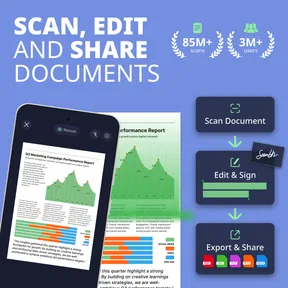
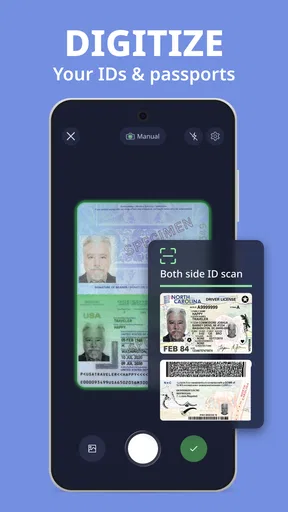
First things first, the idea of turning your phone into a portable scanner sounds super convenient, right? Well, that's exactly what Scan Shot does. The app makes it incredibly easy to scan documents, receipts, or even whiteboard notes with just a few taps. All you need is your smartphone camera, and you're good to go.
What's cool is that it isn't just about snapping a picture. The app uses some clever tech to detect edges and crop the document perfectly. Plus, it enhances the quality of the scan, making it look as if you used a professional scanner. It's like having a little scanner genie in your pocket!
Easy to Use, Even for Non-Techies
One thing I really appreciated about this app is its user-friendly interface. I'm not the most tech-savvy person out there, but navigating through Scan Shot was a breeze. The app guides you through the scanning process step by step, so there's no room for confusion. It’s almost like the app’s holding your hand!
Once you've scanned your documents, organizing them is a piece of cake. You can create folders, rename files, and even search through your documents quickly. It’s perfect for those of us who need to keep our digital lives as clutter-free as possible.
Multiple Formats and Cloud Integration
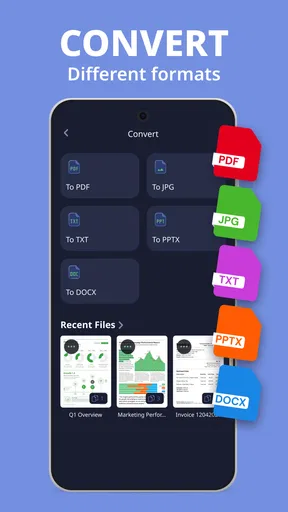
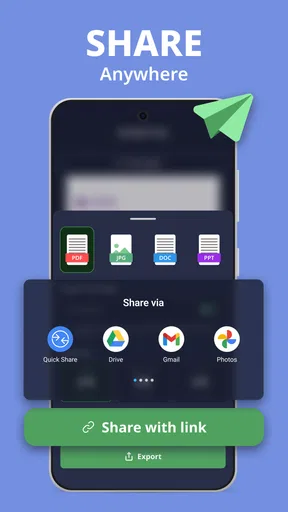
Another feature that stood out to me is the variety of formats you can save your scans in. Whether you need a PDF, JPEG, or even a TXT file, Scan Shot has got you covered. This flexibility is perfect for different needs, whether you're sending a professional report or simply saving a receipt for your records.
Plus, the app supports cloud integration. You can seamlessly upload your documents to services like Google Drive, Dropbox, or OneDrive. This means you can access your scans from anywhere, on any device. It’s incredibly convenient for those of us constantly on the move.
Security and Privacy
In today’s digital age, security is a big deal, and I was pleased to see that Scan Shot takes this seriously. The app ensures that your documents are safe and sound. You can even add a password to your PDF files if you’re dealing with sensitive information. It’s a little extra peace of mind that goes a long way.
Moreover, the app doesn’t store your documents on its servers, which means your data is only accessible to you. In a world where privacy concerns are always looming, this is a huge plus in my book.
Choosing it over a camera or a full scanner
For occasional paperwork, I prefer a dedicated scanning workflow to taking an ordinary photo and leaving it in my camera roll. A scanner app gives the document a clearer purpose: capture, crop, save, and file it where I can find it again. That distinction is most helpful for receipts and forms that would otherwise get buried among everyday pictures. If I only need a quick visual reminder, though, the camera app is simpler and creates less filing work.
A flatbed scanner remains the better choice for repeated batches, especially when precise, consistent results matter or the pages are delicate. Scan Shot is more appealing when portability and speed outweigh that level of control. I would use it for a page or a small set of papers, not assume a phone is always the best replacement for office equipment. The trade-off is straightforward: less hardware and easier access, in exchange for needing decent light, a steady hand, and a quick visual quality check.
Small workflow choices that save time later
Folders and searchable documents are only useful if I give files names I can recognize. Rather than leaving a scan with a generic label, I’d rename it with the subject and a useful clue, such as the organization or purpose. I would also sort receipts soon after capturing them, instead of creating a large backlog that is difficult to search. This is not a flashy feature, but it is the difference between having a digital archive and having a second pile of clutter.
For a multi-page form, I’d scan all pages in one sitting and review the result before putting the paper away. That gives me a chance to catch a missing page, a bad crop, or a page that needs to be recaptured. For a whiteboard, I’d take the scan while the writing is still visible and check that the smallest notes remain legible. These habits are useful because automatic enhancement can improve a capture, but it cannot restore information that was obscured or never recorded clearly.
Another practical trade-off is format. A PDF is usually the sensible choice for a document that should remain together as a page or packet; an image can be more convenient when I only need to insert a single visual into a message or another document. Text output is useful when I want to work with words rather than just preserve an image, but I would still proofread it before relying on it. A scan is not automatically a perfect transcription, especially when the original is faint, handwritten, or visually busy.
Who will get the most from it
I’d recommend this kind of app to students who need to keep handouts and board notes together, people who regularly receive paper forms, and anyone who wants receipts out of their wallet and into a searchable filing habit. It is also a sensible option for someone who travels between home, school, and work and cannot count on having a scanner nearby. The advantage is not that every scan becomes effortless; it is that the camera and a document workflow are already in the same place.
I would steer away from it if I needed to digitize large archives every week, preserve fragile originals, or meet strict imaging requirements. In those situations, a flatbed or a workplace scanning system gives more control and a more repeatable process. It may also be the wrong fit for someone who does not want to manage files on a phone or who rarely needs digital copies at all. A useful tool is only useful when it fits the amount and kind of paperwork a person actually handles.
What to expect before making it a habit
People often wonder whether they can simply scan and forget about the paper. I would not assume a digital copy replaces an original when a school, employer, agency, or other recipient has specific requirements. I’d check what format and signature they accept before sending anything important. The app can help prepare a document, but the receiving organization decides what counts as an acceptable submission.
Another reasonable question is whether cloud access means a file will always be ready on every device. I treat cloud storage as a convenient handoff and backup route, not as a substitute for confirming that an upload has completed and that I am using the right account. If a connection is unreliable, I would finish and inspect the scan first, then handle the upload when I can verify it. That approach also gives me a chance to notice an incorrect destination before sharing sensitive material.
Finally, I’d ask whether paying is necessary. The app can be installed for free, while optional in-app purchases are available; I would try the basic workflow and review the purchase screen before paying for anything. That is a more sensible way to judge value than assuming every listed capability is essential. My recommendation depends on how often I scan: frequent users may value a smoother document routine, while someone who digitizes a page once in a while may be satisfied with a simpler option.
A practical fit, with sensible expectations
All in all, I’d say the Scan Shot - PDF Scanner App is a handy tool for anyone looking to streamline their document management process. It’s efficient, easy to use, and packed with features that make handling documents a lot less of a hassle. I’d recommend giving it a try; you might just wonder how you ever lived without it!
Whether you're dealing with stacks of paperwork or just need to keep everything neat and tidy, this app is here to save the day. So, go ahead and check it out. You won’t be disappointed!
My more measured verdict is that it suits people who want a portable way to capture and organize modest amounts of paperwork, and who are willing to inspect each result before trusting it. Its strongest role is as a bridge between paper in front of me and a file I can store or share. If that is a recurring problem in your week, Scan Shot is worth considering; if you need archive-grade consistency or barely handle paper, a different approach will make more sense.
Verdict
Strengths of Scan Shot: PDF & Photo Scanner
- High-quality PDF scans every time.
- Fast and efficient document processing.
- User-friendly interface for all ages.
- Supports multiple file formats.
- Advanced editing tools available.
Limitations of Scan Shot: PDF & Photo Scanner
- Limited features in free version.
- Ads can be intrusive at times.
- Requires account for cloud storage.
- Occasional glitches on older devices.
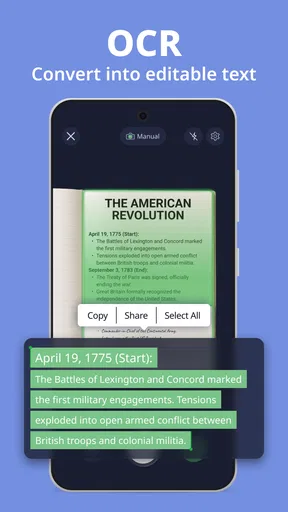
- No direct OCR text editing.
Similar Picks in This Category
View All
Google Calendar
Google LLC4.6

Google Drive
Google LLC4.3

Google Assistant
Google LLC3.9

Microsoft OneDrive
Microsoft Corporation4.6

Samsung Calendar
Samsung Electronics Co., Ltd.4.1

Microsoft OneNote: Save Notes
Microsoft Corporation4.6
Frequently Asked Questions
How does Scan Shot - PDF Scanner App work?
Scan Shot - PDF Scanner App uses your smartphone’s camera to capture images of documents. Once captured, the app automatically detects edges, enhances image quality, and converts them into PDF files. The app also offers options to edit, annotate, and share scanned documents directly from your device.
Is Scan Shot - PDF Scanner App free to use?
Scan Shot offers both free and premium versions. The free version includes basic scanning features with some limitations, such as watermarked documents. The premium version offers advanced features like cloud storage integration, batch scanning, and ad-free usage, typically available through a subscription or one-time purchase.
What file formats does Scan Shot support?
Scan Shot primarily converts scanned documents into PDF format, which is widely accepted and easy to share. Additionally, it supports exporting files as JPEG images, allowing flexibility depending on your needs. This makes it versatile for both document archiving and sharing visual content.
Is Scan Shot - PDF Scanner App secure for sensitive documents?
The app prioritizes user privacy and includes features such as encrypted storage and secure sharing options. However, as with any app handling sensitive data, it’s recommended to use secure networks and enable any additional security settings provided by the app to protect your documents.
Can Scan Shot integrate with cloud services?
Yes, Scan Shot can integrate with popular cloud services like Google Drive, Dropbox, and OneDrive. This feature allows users to easily upload and backup scanned documents to the cloud, ensuring accessibility from any device and providing an additional layer of security for important files.
